The simplest way to experience Logical is to ask it a question about what’s currently on your screen. Let’s try this with a real example.
1
Open a Web Page
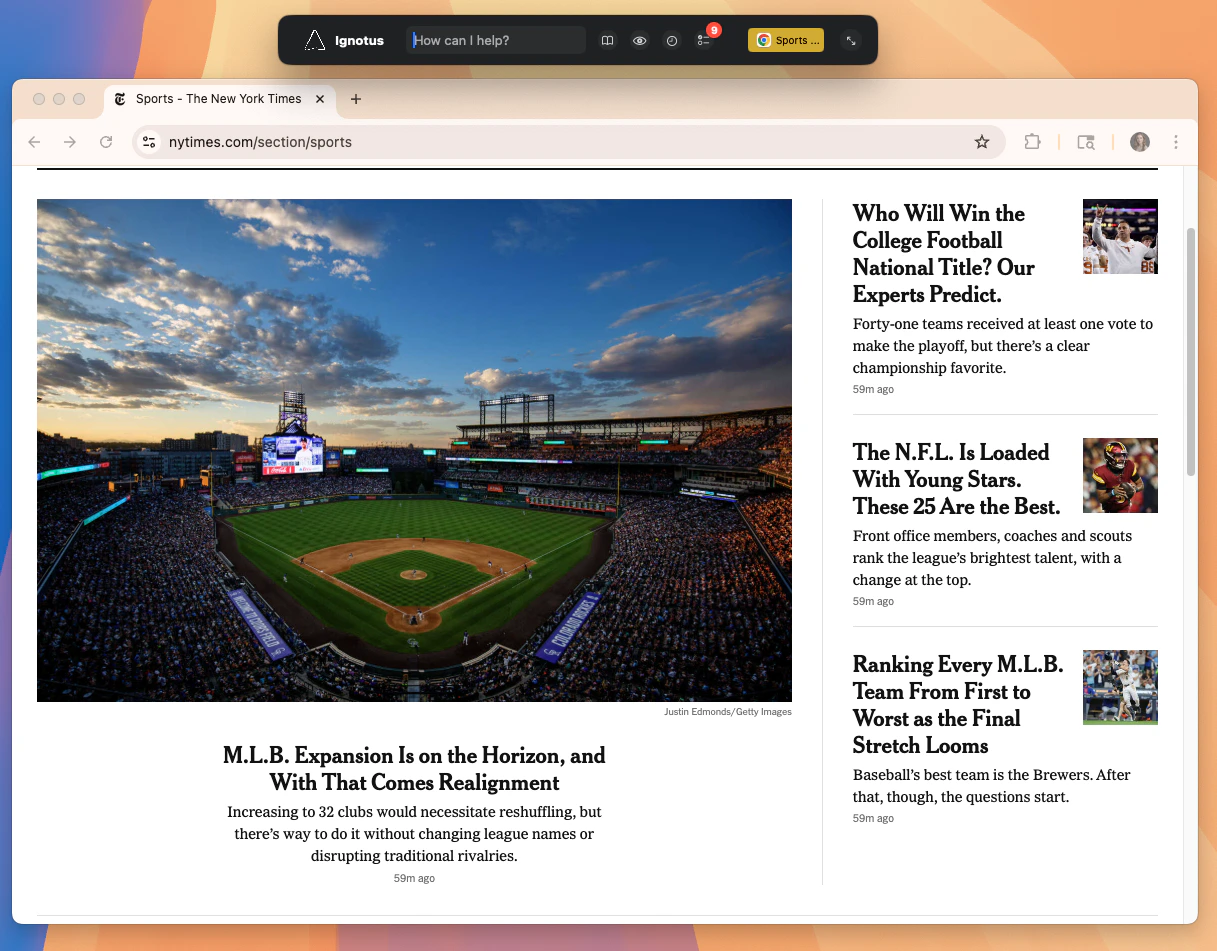
Navigate to any article or webpage. For this example, we’ll use a New York Times article.
A New York Times article open in your browser.
2
Ask Logical a Question
Open Logical and ask a question about the content you’re viewing. Try something like “What are the main points of this article?” or “Summarize what I’m reading.”
Ask Logical about the content on your screen.
3
Review the Response
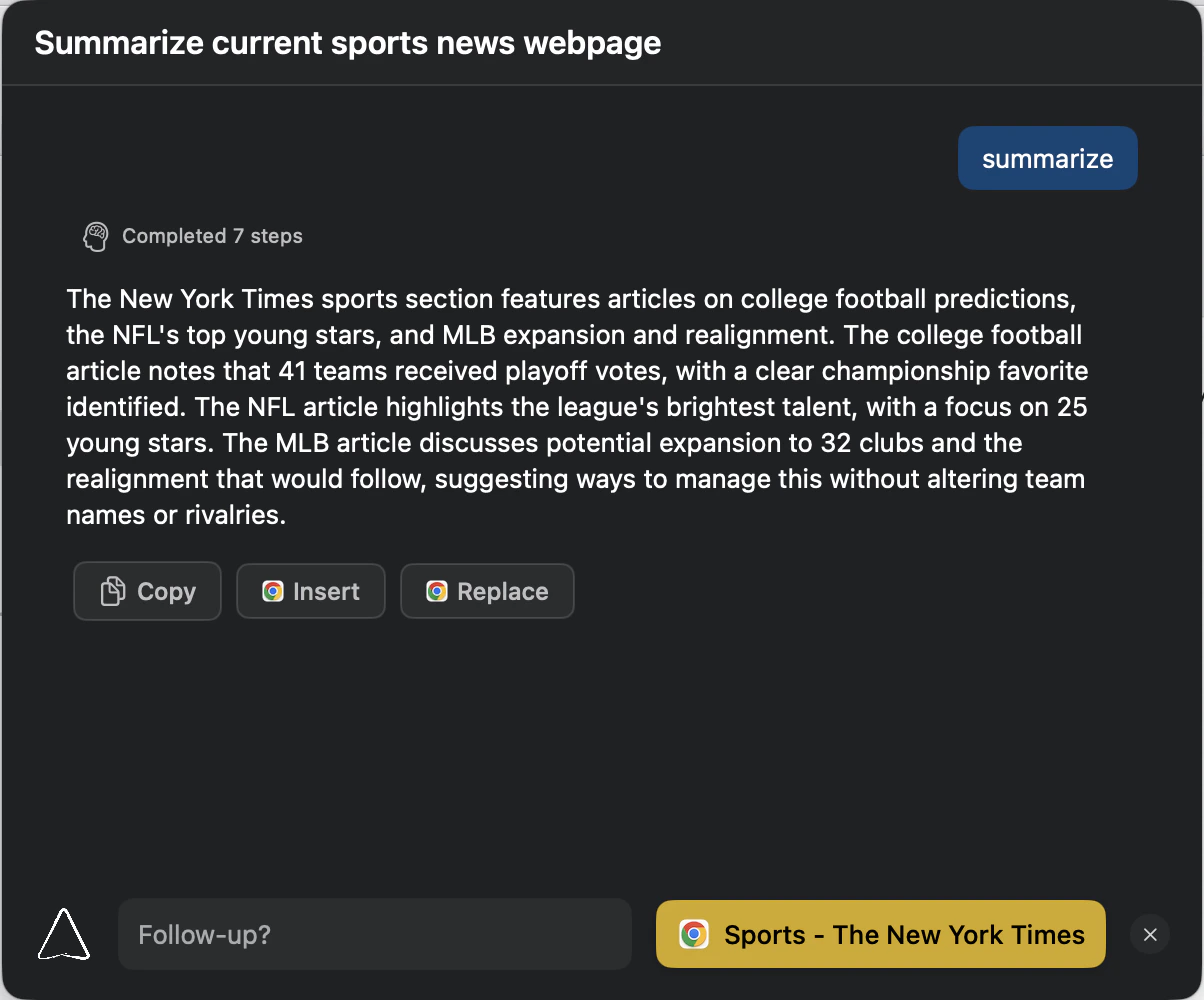
Logical will analyze the article and provide a comprehensive response based on the content it can see.
Logical provides a detailed summary of the article.
That’s it! Logical automatically understood what was on your screen and provided relevant assistance without you needing to copy, paste, or manually provide context.
The Logical window can be dragged to any position on your screen or moved between multiple displays. This lets you position it wherever it’s most convenient for your current workflow.
For more complex workflows that span multiple applications, you can create Tasks to group related windows together. Learn how to set up and use Tasks in our Cross-App Understanding guide.
To give Logical access to your personal or project-specific information, you can create Knowledge Bases from your documents and files. Get started with our Knowledge Bases guide.