Overview

A Knowledge Base is your secure, local repository of information. By creating one, you provide Logical with specific context, enabling it to deliver more relevant and accurate assistance tailored to your projects and personal data. When you attach a Knowledge Base to your current work, Logical uses its content to better understand your questions and generate personalized answers.

Creating a Knowledge Base

Follow these steps to create a new Knowledge Base from your files.
1

Open the Knowledge Base Manager

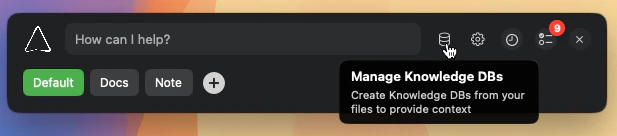
From the main Logical window, click the Knowledge Base icon to open the management screen.
Main Logical window with an arrow pointing to the Knowledge Base icon.
2

Name Your Knowledge Base

Provide a descriptive name and a brief description. This will help you easily identify it later.
3

Add Your Content

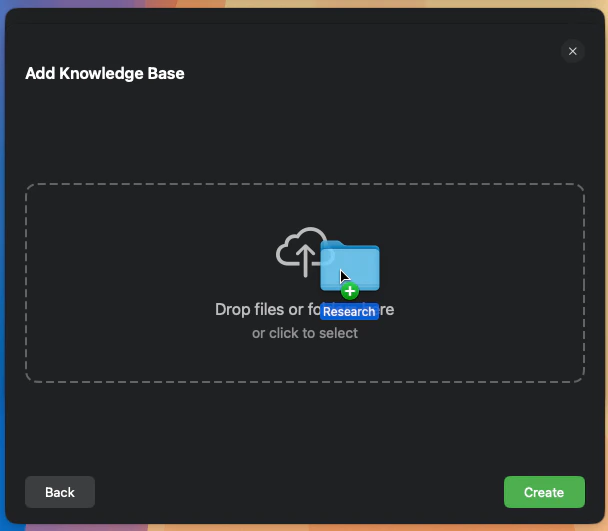
Drag and drop your files and folders into the window. Logical supports a wide range of formats, including, but not limited to:
  • Documents: .pdf, .md, .txt
  • Code Files: .swift, .js, .ts, .py, .java, .cpp, .c, .h
  • Web & Data: .html, .css, .json, .xml
  • Images: .png, .jpg, .jpeg, .tiff, .heic, .webp
The Knowledge Base creation window with several files being dragged onto it.
4

Process Your Files

Click Create. Logical will then process your files to build your new Knowledge Base.

Excluding Files and Folders

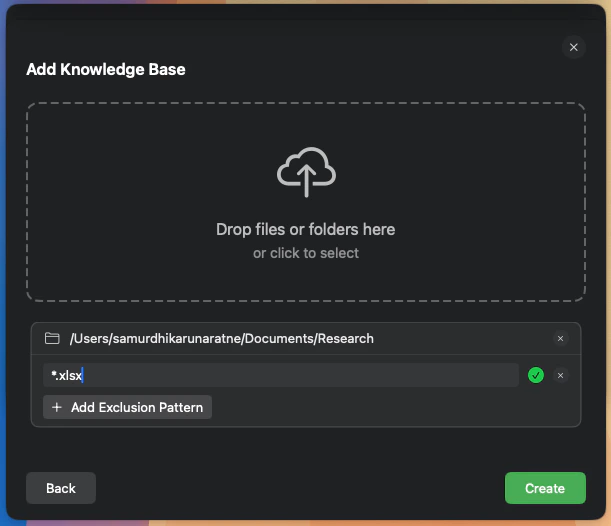
When you add a folder to a Knowledge Base, you can specify exclusion patterns to prevent certain files or subfolders from being included. This is useful for ignoring things like node_modules, build artifacts, or git directories. Logical uses glob patterns for exclusions.
  • To exclude a specific folder name anywhere it appears, use the folder name (e.g., node_modules).
  • To exclude a specific file type, use a pattern like *.log.
  • To exclude a directory at the root of the folder you’re adding, use a pattern like build/.
You can add multiple exclusion patterns for each folder you add.
The source item view showing the 'Add Exclusion Pattern' button and a list of patterns.

Updating a Knowledge Base

You can easily add new information or remove outdated files from an existing Knowledge Base.
1

Select a Knowledge Base to Edit

Open the Knowledge Base manager and find the Knowledge Base you wish to modify. Click the Edit button next to its name.
2

Manage Your Files

In the edit view, you can drag and drop new files to add them or click the “x” icon next to a file to remove it.
3

Save Your Changes

Click Update to save your changes. Logical will re-process the files to update the Knowledge Base.

Attaching a Knowledge Base to Your Context

You can provide Logical with context from a Knowledge Base in two ways.

1. Assign to a Named Task

For long-term projects, you can permanently associate a Knowledge Base with a Task (a saved group of application windows).
1

Open the Task Editor

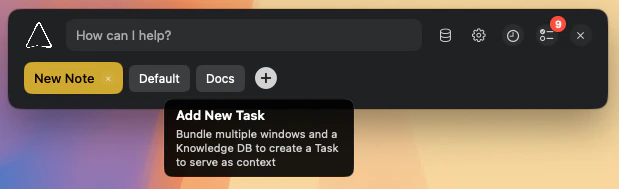
Click the Add New Task button or edit an existing Task from the main window.
The main Logical window with the 'Add New Task' button highlighted.
2

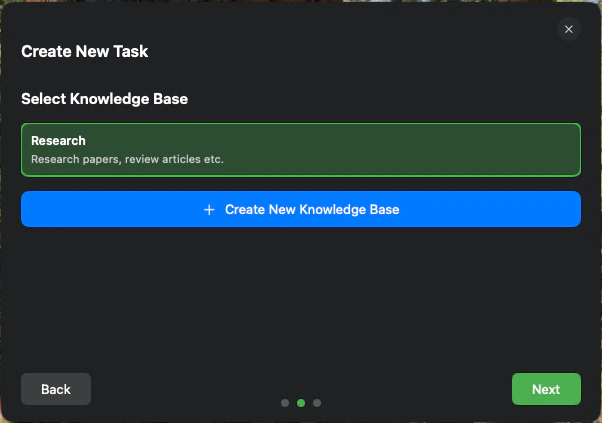
Select a Knowledge Base

In the Task editor, use the dropdown menu to select from your available Knowledge Bases.
The Task editor window with the Knowledge Base dropdown menu expanded.
3

Save the Task

After saving, the selected Knowledge Base will automatically activate whenever you switch to this Task.

2. Hot-Attach to Your Current Context

For quick, temporary needs, you can “hot-attach” a Knowledge Base directly to your current context.
1

Open the Knowledge Base Selector

In the main Logical window, click the book icon.
The main Logical window with the book icon highlighted.
2

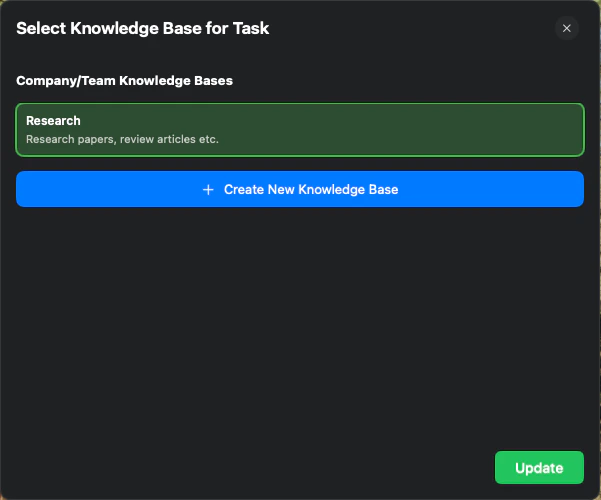
Select and Attach

A window will appear listing your Knowledge Bases. Select one and click Update to attach it. The book icon will turn green, indicating that a Knowledge Base is active.
The Knowledge Base selection window with one item selected and the 'Update' button highlighted.
To detach the Knowledge Base, simply click the green book icon again.

Privacy

Your Knowledge Base contents are stored locally on your device and are not sent to Logical servers.However, snippets of content may occasionally be sent to third-party LLM service providers for context understanding. For more details on how your data is handled, please refer to our Privacy Policy.