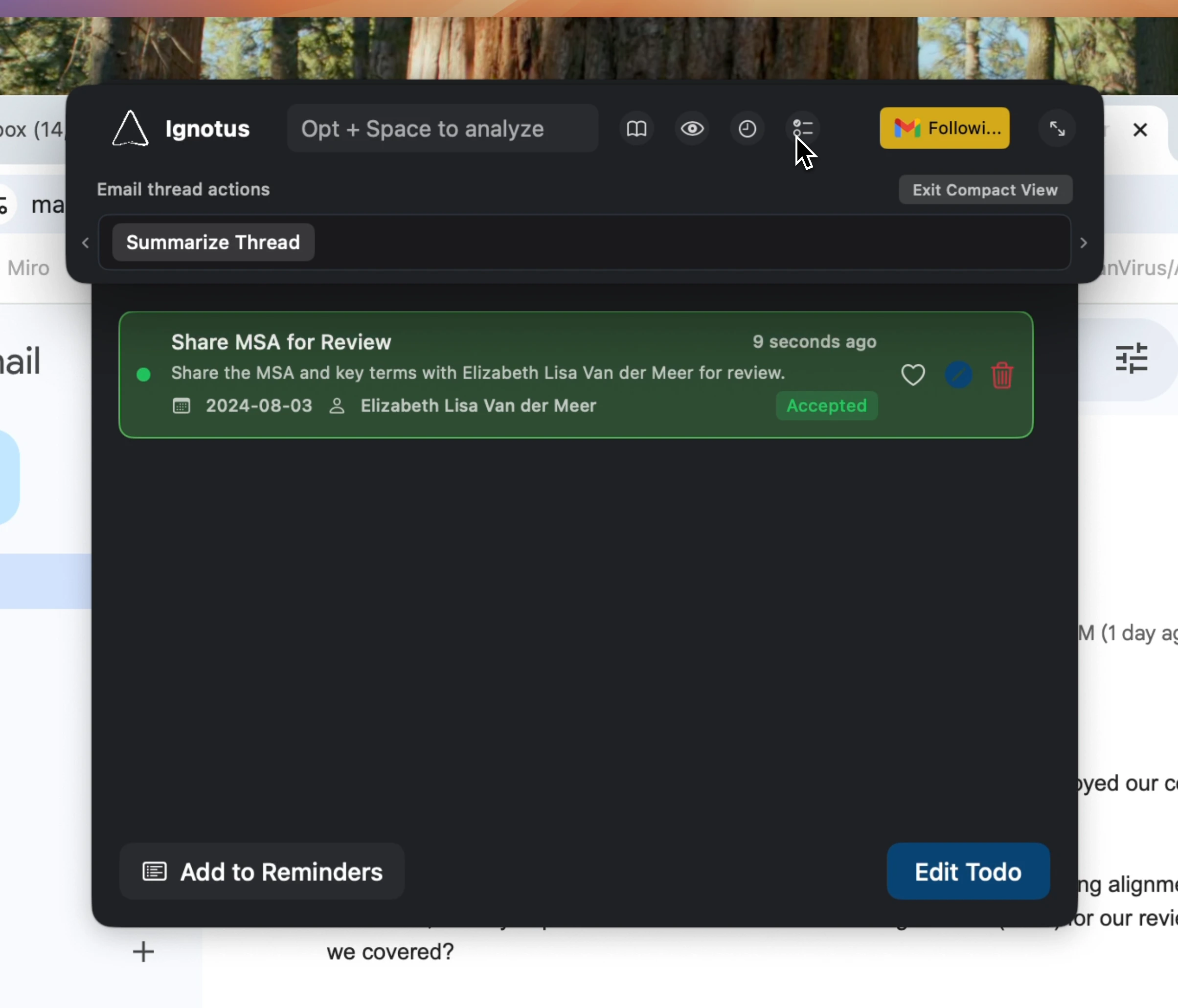
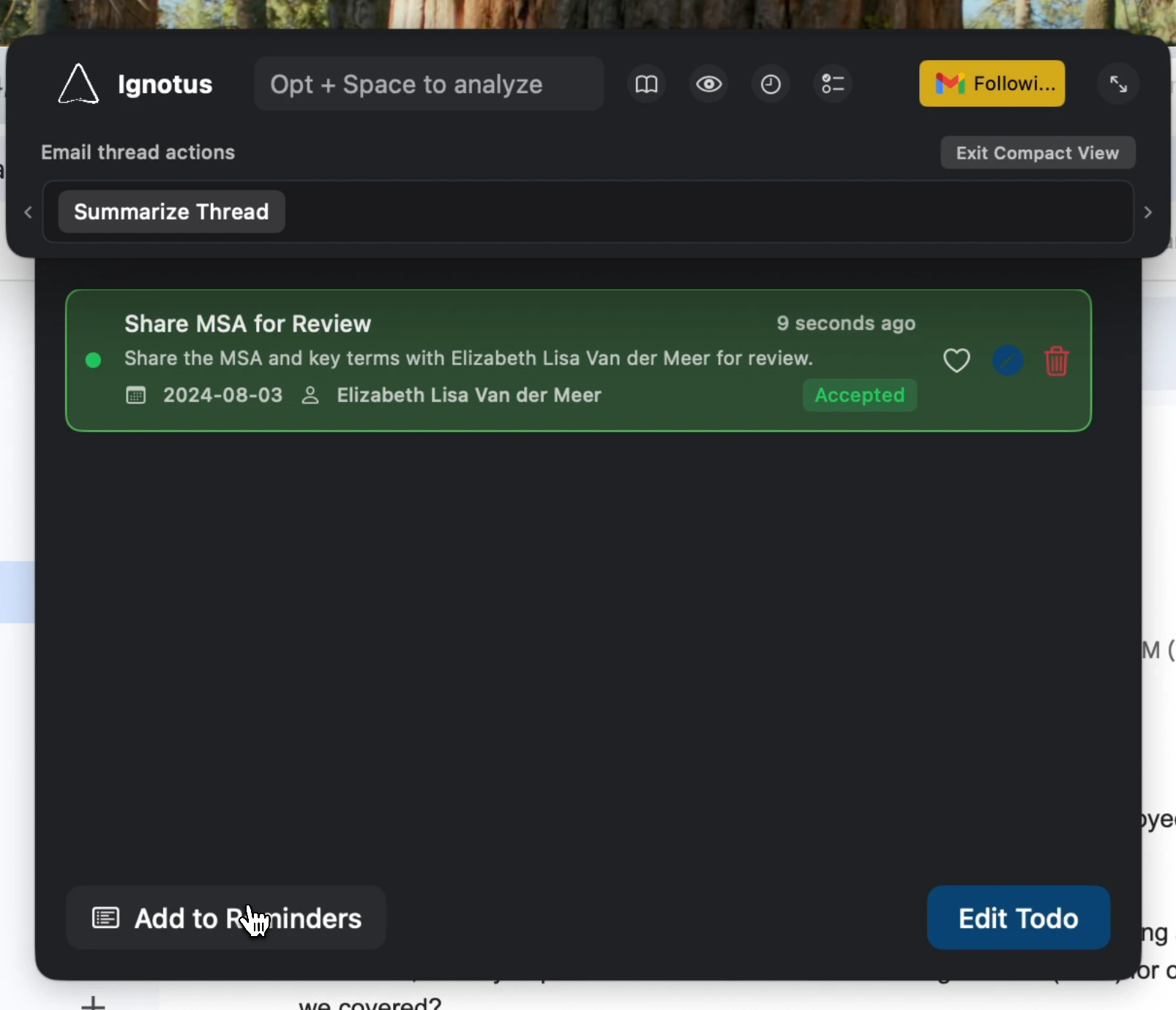
Logical can automatically identify tasks and action items from your conversations, emails, and documents. This feature helps you stay organized by capturing to-do items that might otherwise be missed, without requiring you to manually add them to a list.
To get the most out of To-Do Identification, you’ll want to configure a few settings.
1
Enable the Feature
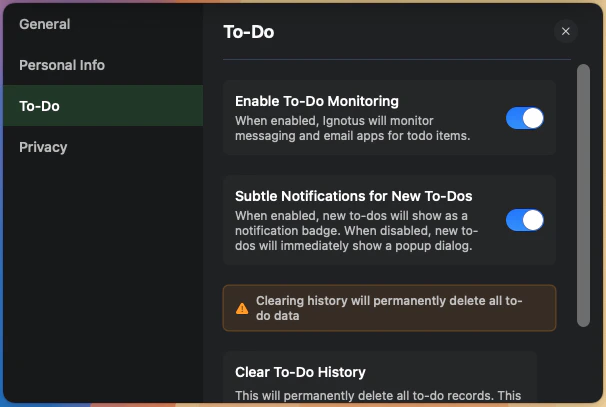
First, ensure that To-Do Identification is turned on in the main settings panel.
2
Add Your Personal Details
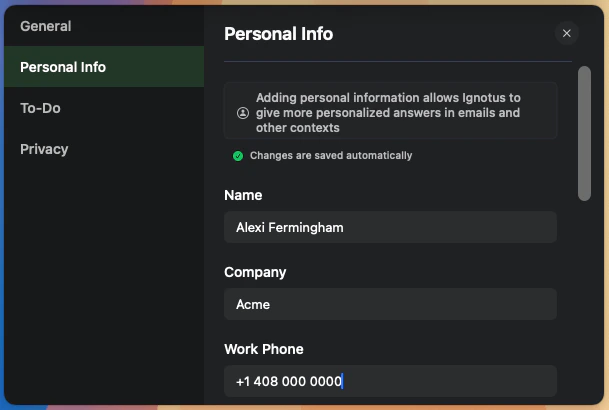
For the most accurate results, specify your name in the Personal Details section of the settings. This helps Logical distinguish between tasks assigned to you versus tasks for other people.
Enter your name in the Personal Details section for better accuracy.
3
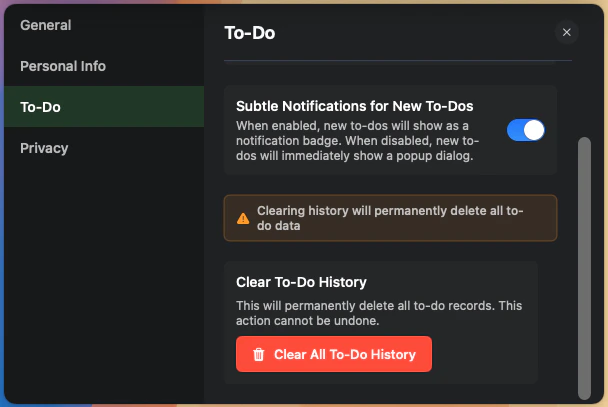
Choose Your Notification Style
Select how you want to be notified when Logical identifies a new to-do item.
Toggle To-Do Identification on or off in the settings.
You have two options:
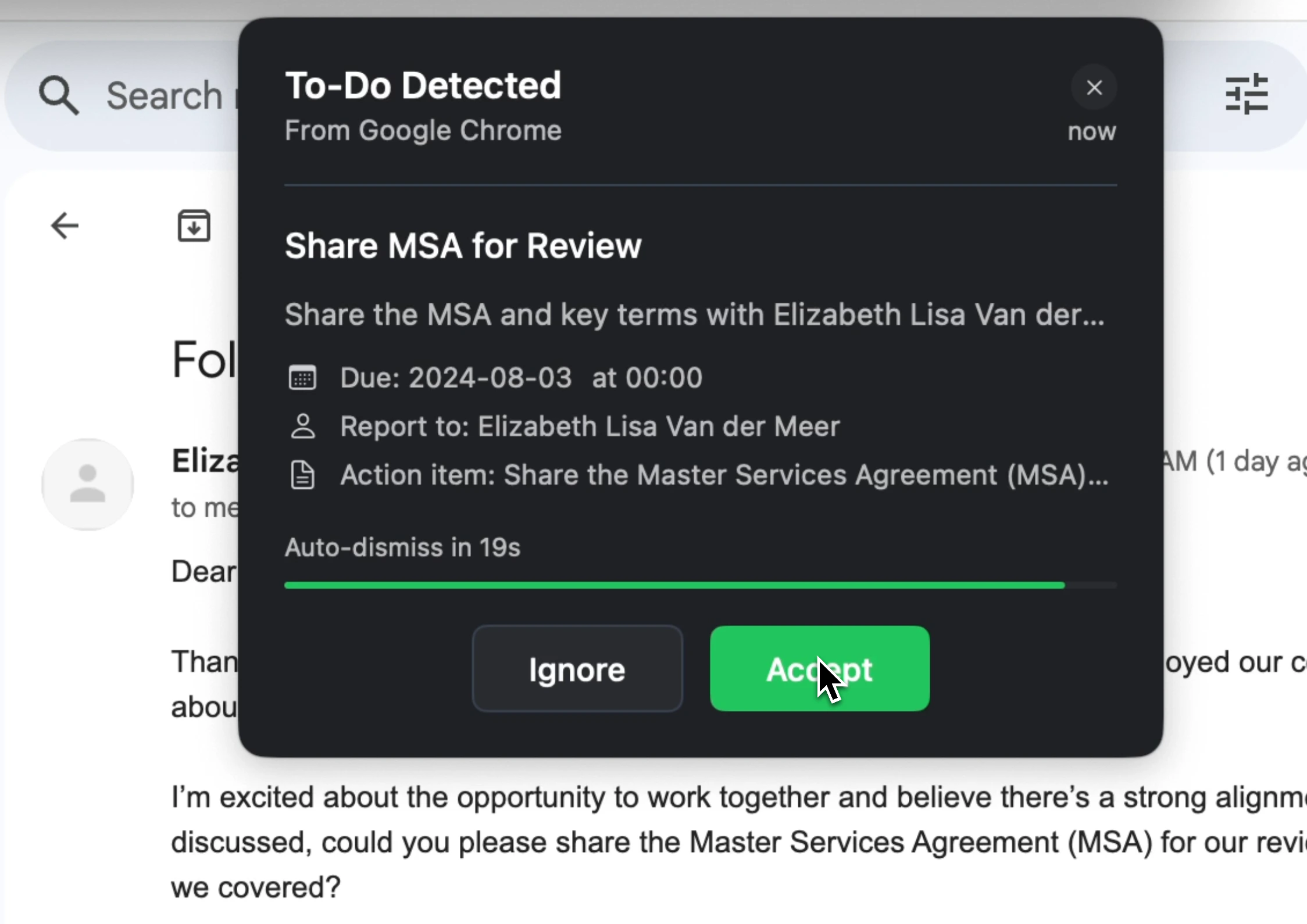
Immediate Pop-up: A dialog appears right away, allowing you to accept or ignore the item.
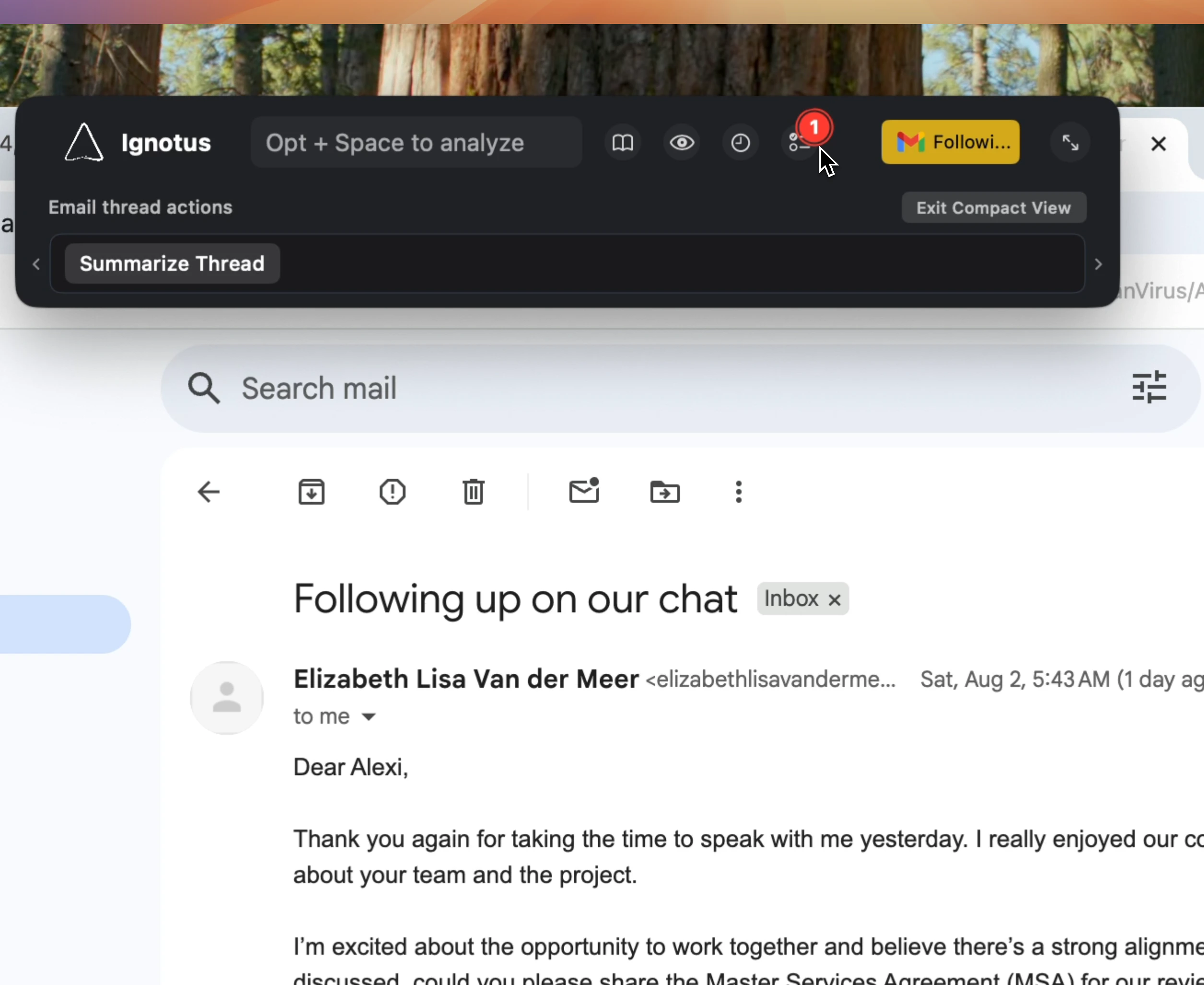
Notification Badge: A small badge appears in the main window for less intrusive notifications.
Your to-do items are stored locally on your device and are not sent to Logical servers.However, when Logical may send your content to third-party LLM service providers for processing. For more details on how your data is handled, please refer to our Privacy Policy.