Sentry Mode is a proactive monitoring feature that allows Logical to observe your screen in real-time to detect issues, provide suggestions, and offer actionable help without you having to ask.When activated, Logical will analyze the content of a selected screen or application window, identify opportunities for assistance, and present hints or actions directly in the main window.
Follow these steps to activate and use Sentry Mode.
1
Activate Sentry Mode
From the main Logical window, click the eye icon to open the Sentry Mode configuration panel.
Click the eye icon to begin configuring Sentry Mode.
2
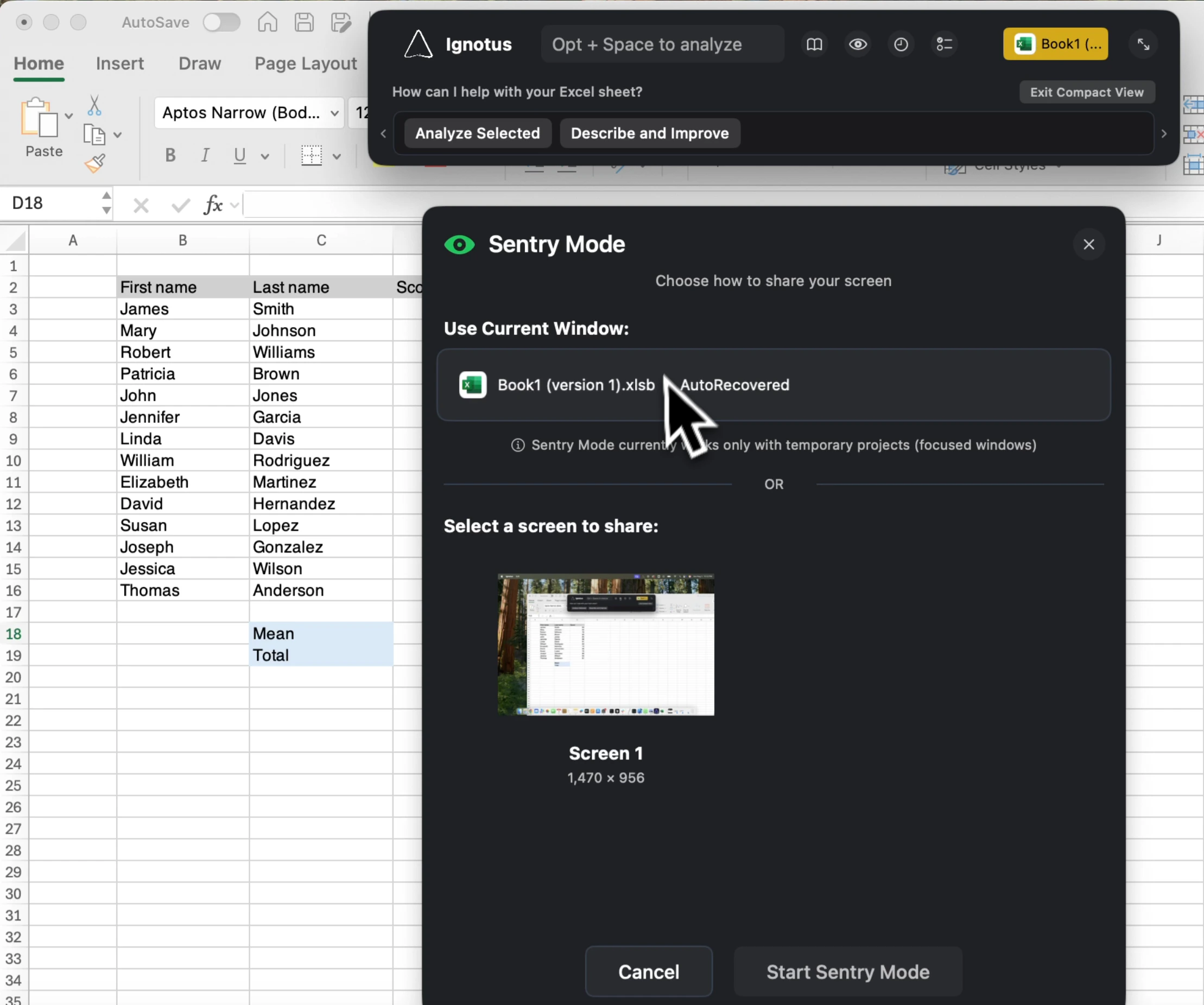
Choose a Monitoring Source
You have two options for what Logical will monitor:
A Single Window: Logical will only monitor the application window that is currently focused. This is ideal for getting help with a specific task.
An Entire Screen: Logical will monitor everything visible on one of your displays. This is useful for tasks that span multiple windows.
Select whether to monitor the current window or an entire screen.
3
Start Monitoring
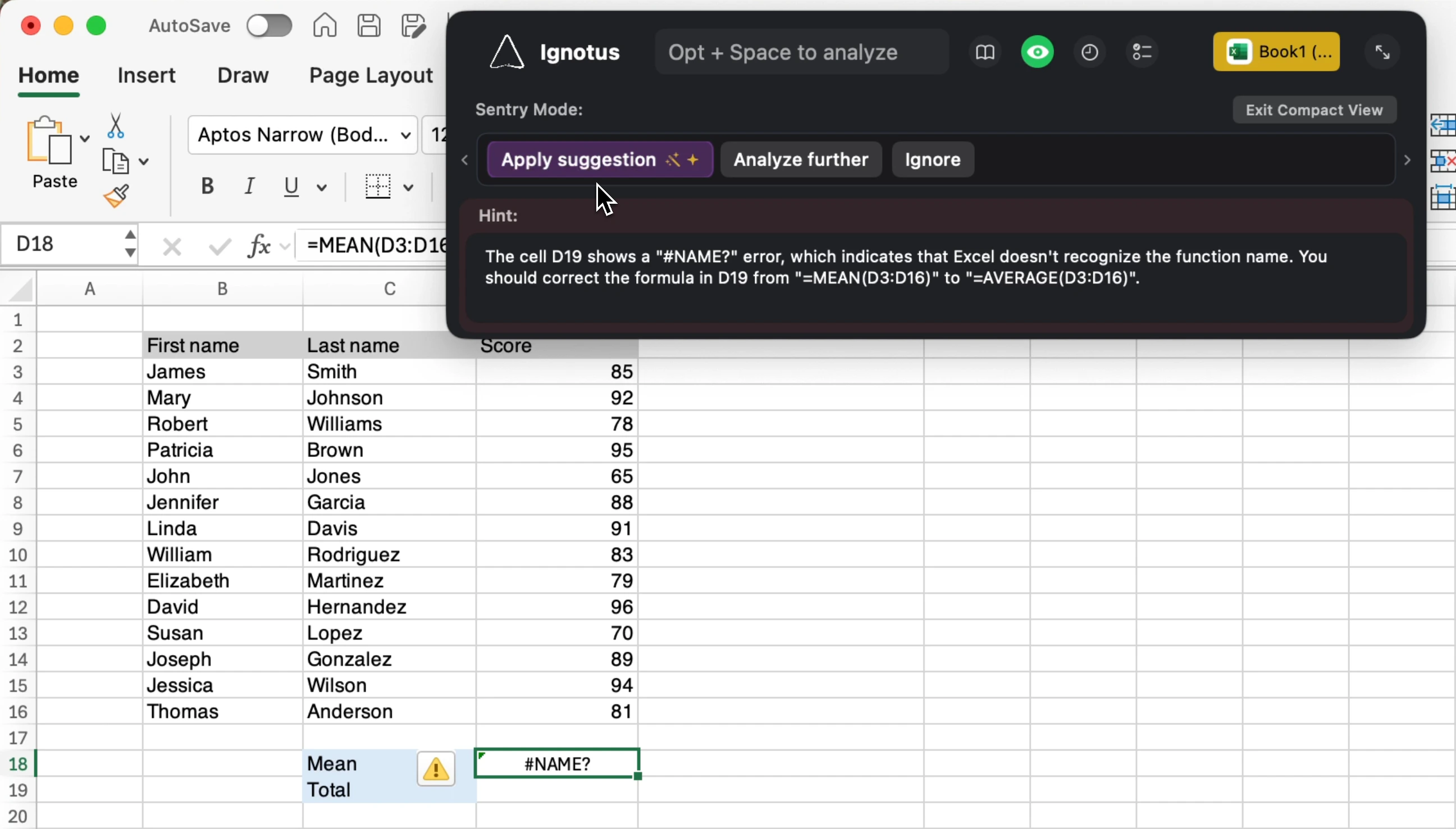
Click Start Sentry Mode. The eye icon in the main window will turn green, indicating that Sentry Mode is active and monitoring your selected source.
The green eye icon indicates that Sentry Mode is active.
4
Receive Hints and Actions
As you work, Logical will display contextual hints and suggestions in the main window. For supported applications, you may also see buttons to perform specific actions.
Suggestions and actions will appear in the main window as you work.
5
Deactivate Sentry Mode
To stop monitoring, simply click the green eye icon in the main window.
Sentry Mode works by analyzing the visual content of your screen. Parts of this process may be done locally on your device
while other parts may require sending your screen content to third-party LLM service providers.Your screen content is not sent to Logical servers. For more details, please refer to our Privacy Policy.